Skip to content

Adding a Subscriber

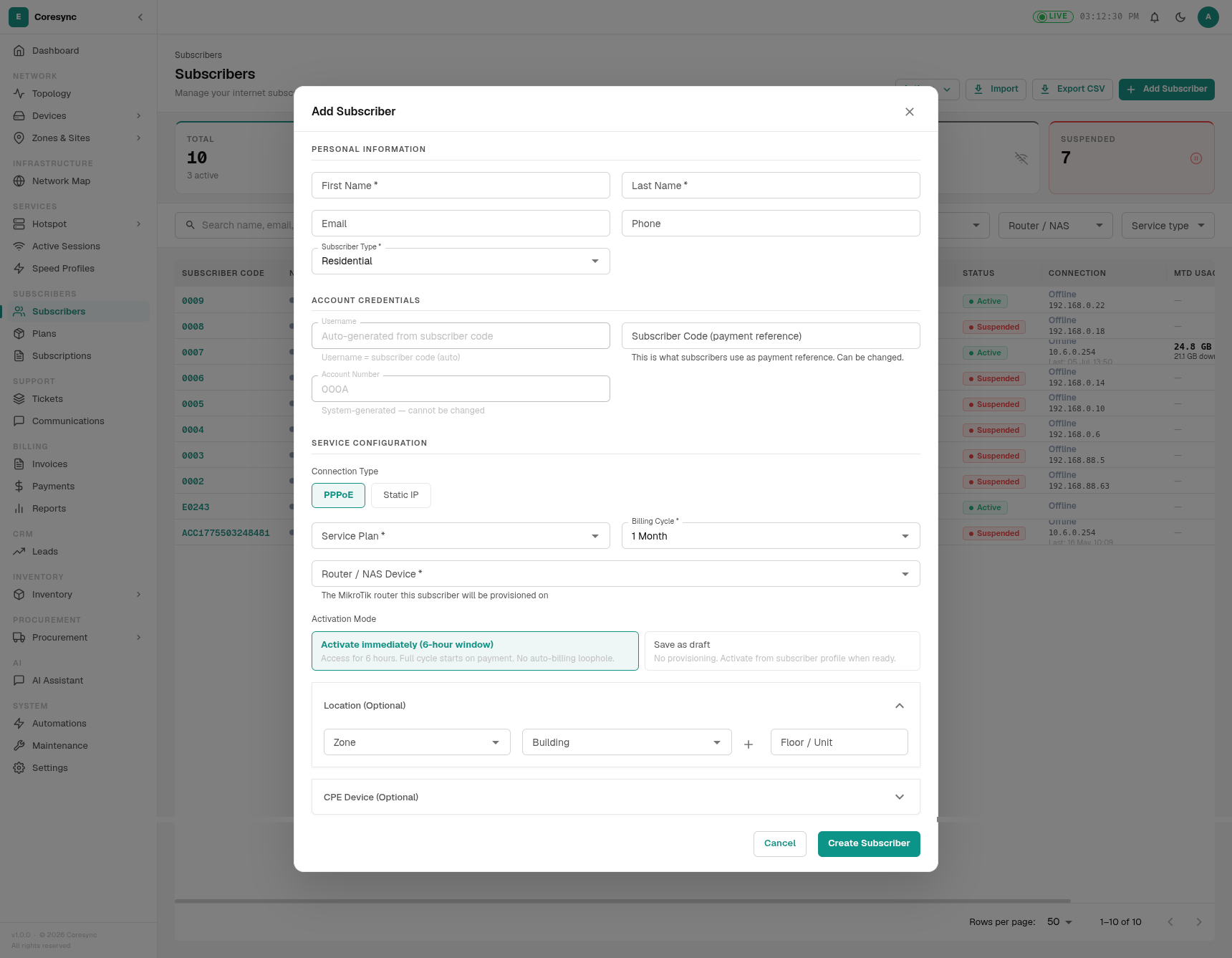
To add a new subscriber, click the Add Subscriber button in the top right of the Subscribers page. This opens the subscriber creation dialog.

Screenshot: Add Subscriber dialog — add image here

Step-by-Step

1. Personal Information

Field Required Notes
First Name Yes
Last Name Yes
Email Address No Used for invoices and magic-link login
Phone Number Yes Used for SMS notifications and M-Pesa STK push

2. Account Configuration

Field Required Notes
Subscriber Type Yes Residential, Business, or Corporate
Zone Yes The network zone this subscriber belongs to
Service Type Yes PPPoE, Static IP, Hotspot, or Both (PPPoE + Hotspot)

Service Type affects what additional fields appear:

Field Notes
Router / NAS Device The RADIUS-enabled device that will authenticate this subscriber
Username RADIUS username (auto-suggested, can be customized)
Password RADIUS password (auto-generated, can be changed)
Field Notes
Router / NAS Device The device managing this IP pool
Static IP Address Selected from the available IP pool on the chosen device
Field Notes
Router / NAS Device The hotspot device

Combines the fields from PPPoE and Hotspot above.

3. Plan & Subscription

Field Required Notes
Service Plan Yes Select from active plans
Billing Cycle Yes Determined by the selected plan (Daily, Weekly, Monthly, etc.)

4. Activation Mode

Choose how the account is activated after creation:

Option Effect
Activate Immediately Subscriber gets internet access right away, subscription start date = today
Create as Suspended Account exists but has no internet access until manually reactivated
Save as Draft Account is saved but not provisioned — use Continue Draft later to complete activation

Note

For PPPoE subscribers, RADIUS credentials are only provisioned when the account is activated (not on Draft). Selecting Activate Immediately or later using Reactivate will push the credentials to the RADIUS server.

After Creation

Once created, you will be taken to the subscriber's detail page where you can:

  • View the auto-generated Account Number
  • Confirm RADIUS credentials (for PPPoE)
  • Verify the subscription start and end dates
  • Record an initial payment if needed