Skip to content

Subscriber List

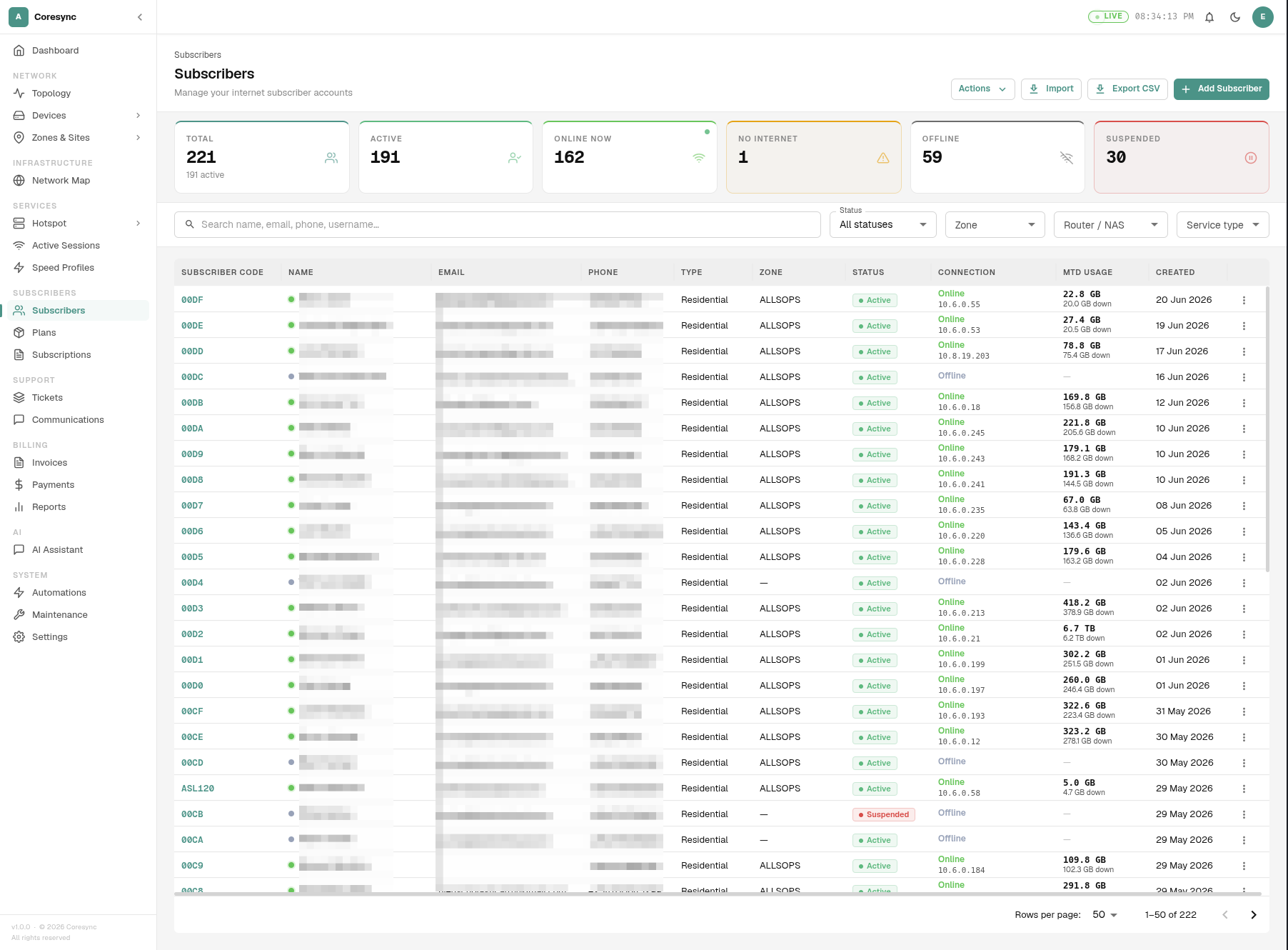
The subscriber list is your central view of every customer account. It shows live connectivity status, account health, and gives you quick access to actions on any subscriber.

Screenshot: subscriber list — add image here

Stat Cards

At the top of the page, six cards give you an at-a-glance snapshot of your subscriber base:

Card Description
Total Total subscriber count + number currently Active
Active Subscribers in ACTIVE billing status
Online Now Subscribers currently passing traffic (live, glowing indicator)
No Internet Subscribers connected to the network but blocked from internet access
Offline Subscribers not connected
Suspended Subscribers whose access has been removed

Searching and Filtering

Use the search box to find subscribers by name, email, phone number, or username.

Use the filter dropdowns to narrow the list:

Filter Options
Status All, Online, No Internet, Offline, Active, Suspended, Terminated, Draft
Zone Any configured zone
Router / NAS Any network device
Service Type PPPoE, Hotspot, Static, Both

Filters stack — you can combine multiple filters at once (e.g. Suspended + a specific Zone).

Table Columns

Column Description
Account # Unique account number in monospace format
Name Full name with a colored dot showing live online status (green = online, amber = no internet, gray = offline)
Username / Account RADIUS username or hotspot account
IP Address Shown for Static service type subscribers
Email Contact email
Phone Contact phone number
Type Residential, Business, or Corporate
Zone The network zone the subscriber belongs to
Status Billing status chip (Active, Suspended, Terminated, Draft)
Connection Online/Offline/No Internet with last-seen timestamp
MTD Usage Month-to-date download usage with breakdown
Created Account creation date
Actions Per-row action menu

Per-Row Actions

Click the actions menu ( ⋮ ) on any row to access:

Action When Available What it Does
View Details Always Opens the full subscriber detail page
Setup RADIUS PPPoE subscribers Configures RADIUS authentication credentials
Continue Draft Status = DRAFT Resumes account activation flow
Suspend Status = ACTIVE Removes internet access, status becomes SUSPENDED
Reactivate Status = SUSPENDED Restores internet access, status becomes ACTIVE
Send Message Always Opens SMS/email dialog for this subscriber

Top Bar Actions

Add Subscriber

Opens the new subscriber creation dialog. See Adding a Subscriber for full details.

Import

Import subscribers in bulk from a CSV file. The portal validates the format before importing.

Export CSV

Downloads the current filtered list as a CSV file. The export respects all active filters — if you have filtered to a specific zone, only that zone's subscribers are exported.

Actions Dropdown

Action Description
Push Static to Router Provisions static IP assignments to the relevant network devices for all Static subscribers
Extend Subscriptions Opens the bulk extension dialog — extend subscription end dates for a filtered group of subscribers

Pagination

The list supports server-side pagination. Use the rows-per-page selector at the bottom to show 25, 50, or 100 subscribers per page.

Tip

Use the Export CSV button with active filters to get a targeted list — for example, all Suspended subscribers in a specific zone.